
Quickstart
Start using advanced robot controllers.
System Setup
Hardware and software setup required to use Reforge's software.
Hardware Setup
Reforge calibration requires (soft) real-time access to the robot controls, which entails the following minimum requirements:
| Workstation/robot PC | |
|---|---|
| Operating system | Ubuntu 24.04.3 LTS or later (for C++ builds) |
| CPU platform | x86_64 or arm64 |
| CPU performance | Depends on computation load of user program |
| Network | |
|---|---|
| Nodes | 1 workstation PC and 1 robot server |
| Connection | Wired LAN |
| Latency | Round trip <1 ms |
| Bandwidth | Send/receive both ways < 1.0MiB/s |
Sensors and data
Successful integration assumes the robot has the following capabilites:
- An accelerometer located at the tool center point (TCP) of its end-effector that can measure data in the x-, y-, and z-coordinates of the end-effector’s inertial frame of reference (or the robot base’s inertial frame).
- Encoders in each joint that can accurately measure the current joint position of the robot at a rate of 200 Hz or higher.
- A real-time API to access data from (1) and (2) and to command the joint positions with time-domain angular motor positions.
- A URDF file that describes the robot’s kinematics and dynamics (dynamics optional but preferred).
If you do not have an embedded accelerometer and would like to use an external accelerometer on the robot, we have a solution for that. Please contact us for support.
Software Setup
Reforge requires setting up and running Python 3.10 (or later) on the robot. For robot SDKs that use the Robot Operating System (ROS), a ROS 2 installation is also required. Instructions to install the Python and ROS 2 packages can be found from a variety of sources on the internet. For pure C++ support, please contact us.
Calibrate your robot
Get data to create a model of your robot.
Step 1: Create an account and register a robot
Create or log into your Reforge Robotics account at app.reforgerobotics.com. You will be prompted to set up your first robot and get your API key for calibration.
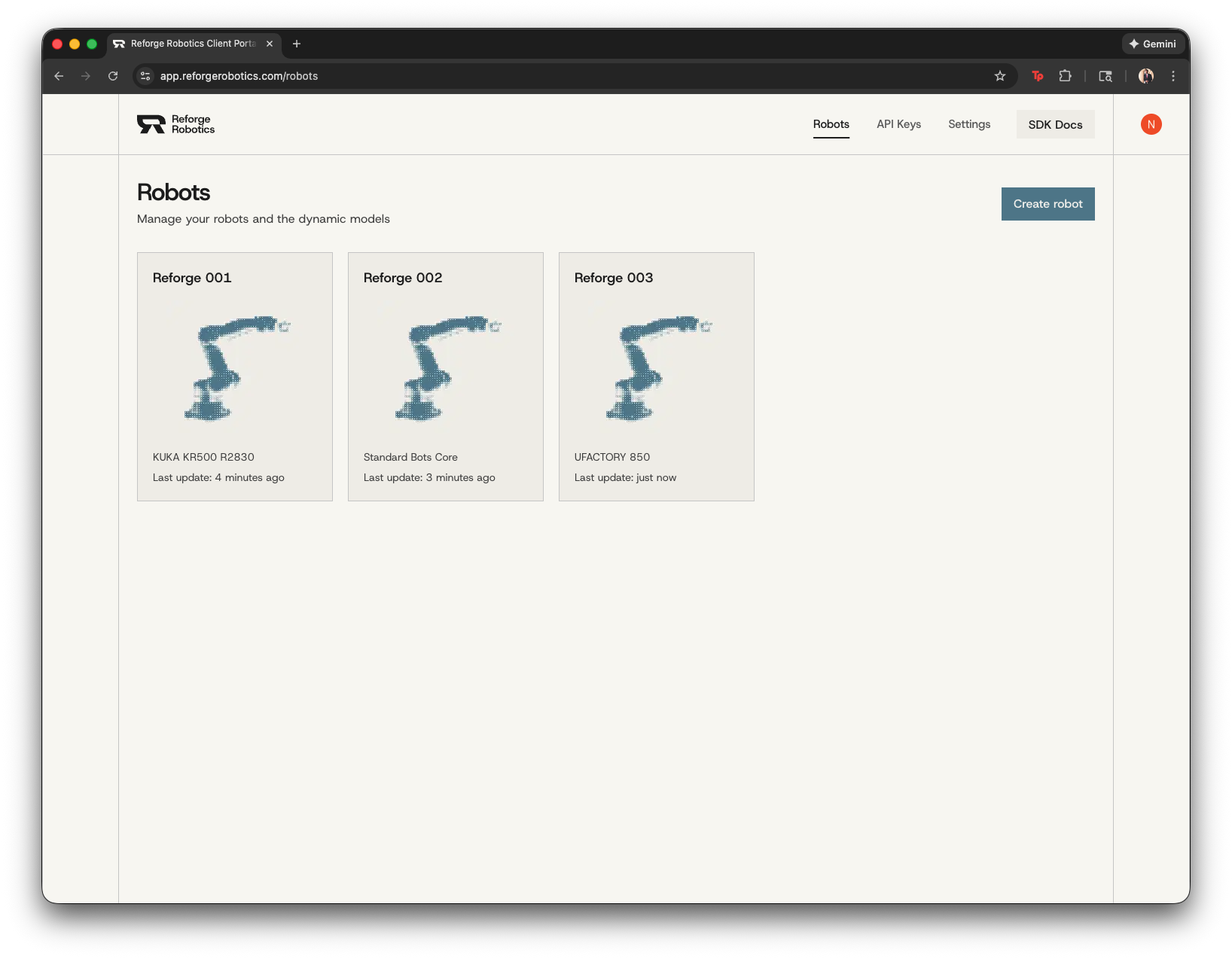
You can choose an existing robot integration if it is available. Otherwise you can integrate your own robot in Step 2.
Step 2: Integrate your robot and install
Check the Robot Integrations section to see if we already have an integration for your robot that you can download and install. Otherwise, you can integrate your robot automatically or manually by cloning and following the instructions from the reforge-interface repository.
For installation, go to the reforge-interface folder and run:
bashpython3 -m venv venv
source venv/bin/activate
pip install -r requirements.txt
pip install .
Step 3: Run calibration and identification
From your PC, run the calibration and identification to get your robot model using the reforge_robot_id and reforge_api_key obtained from app.reforgerobotics.com/api-keys:
bashpython3 -m robot.run calibrate <robot_ip> --local_ip <local_ip> --sdk_token <robot_sdk_token> --robot_id <reforge_robot_id> --identify <reforge_api_key>
where the local_ip (your PC's IP address) and robot_sdk_token (token provided by the robot manufacturer to use their SDK) fields may not be necessary. The identification API request will return PyTorch models, stored in the robot/models/current/ folder, that you will use for control.
Step 4: Run vibration test to verify calibration
Once the identification is complete and the models are added to your reforge-interface folder, run the vibration_test:
bashpython3 -m robot.run vibration_test <robot_ip> <local_data_location> --local_ip <local_ip> --sdk_token <robot_sdk_token>
where the local_data_location is robot/data/{YYYY}-{M}-{D} and {YYYY}-{M}-{D} should be replaced by the year, month, and day of your calibration run (e.g, today).
The robot will go through a random series of motion pairs, one uncompensated and one compensated, store the accelerometer data from the motion tests, and print out a log with the test results.
The test results compare the residual vibration with and without Covalent Shaper software compensation. If you desire higher levels of compensation, the model will need to be improved with more data. Rerun the calibration and specify the --fine_tune argument
bashpython3 -m robot.run calibrate <robot_ip> --local_ip <local_ip> --sdk_token <robot_sdk_token> --robot_id <reforge_robot_id> --identify <reforge_api_token> --fine_tune <reforge_api_token>
or manually using data from another calibration:
bashpython3 -m robot.run fine_tune <reforge_api_token> <reforge_robot_id> <local_data_location>