Control
Use Covalent KineCal during runtime by loading one or more KineCal result bundles, compensating a desired joint target or trajectory, and sending the compensated command to the robot manufacturer's SDK.
Before using this page, complete Calibration and Identification so that src/robot/models/kinecal/ contains at least one successful KineCal result.
Complete Example
The complete runnable example is in:
textsrc/robot/example_usage/kinecal/kinecal_example_usage.py
Run this example after completing First Steps, with the Python environment active and the package installed.
From the repository root, run:
bashpython3 src/robot/example_usage/kinecal/kinecal_example_usage.py
To run the terminal-only path without opening the trajectory plot, run:
bashpython3 src/robot/example_usage/kinecal/kinecal_example_usage.py --skip-plot
The example:
- Loads a baseline URDF that includes a custom end-of-arm tool.
- Loads a folder of KineCal result bundles.
- Plans a nominal joint trajectory for simulation.
- Compensates one goal configuration.
- Compensates one full joint trajectory.
- Validates that the compensated terminal pose matches the nominal terminal pose at the most distal shared link.
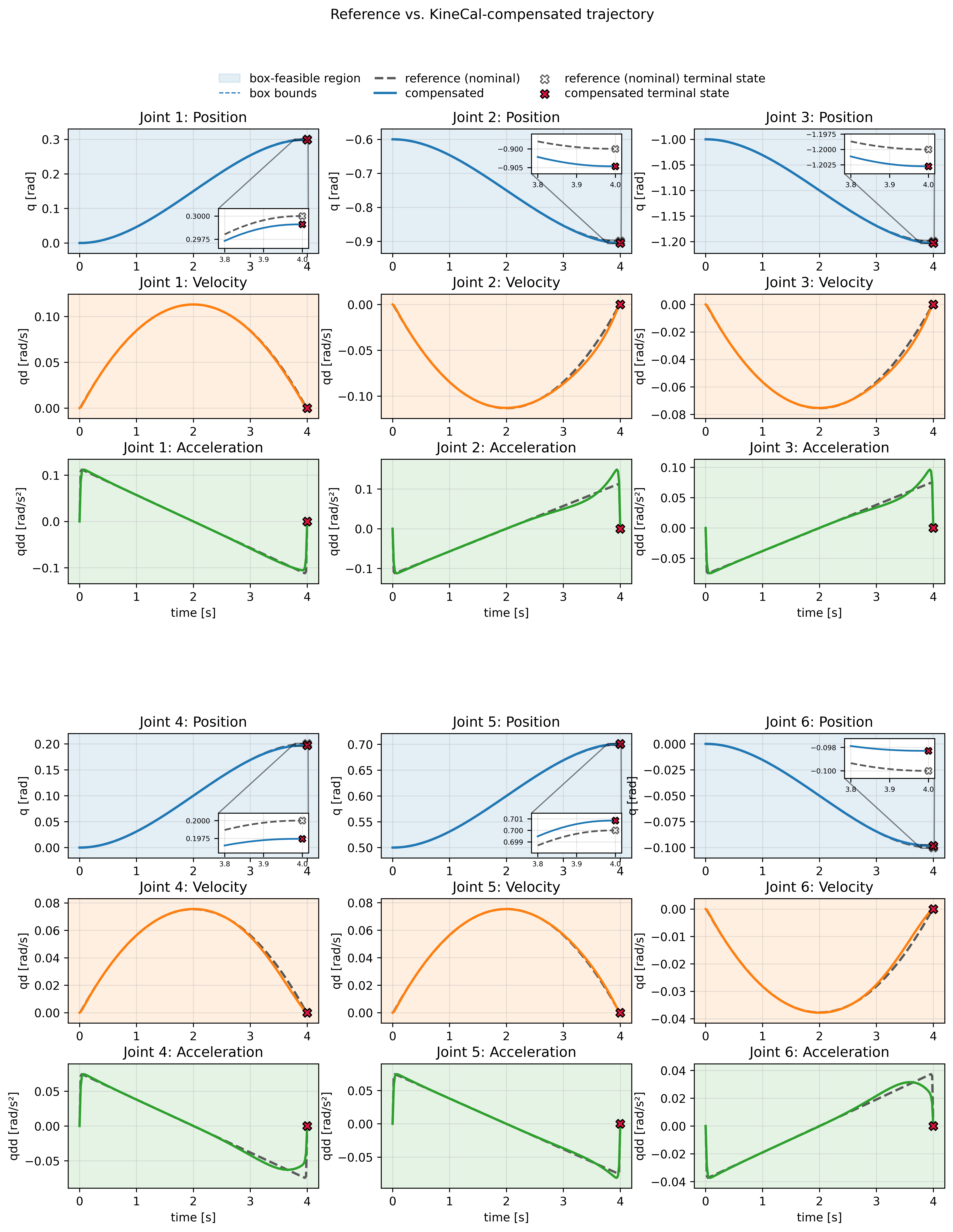
- Opens a trajectory comparison plot.
Inputs
KineCal Control needs:
- A baseline URDF for the robot you are actually controlling. This can include the end-of-arm tooling used in production.
- A KineCal results directory (default:
src/robot/models/kinecal/) containing one or more extracted KineCal result folders. - A nominal target joint configuration, or a nominal joint trajectory.
- Joint position limits are inferred from the provided baseline URDF.
- Joint velocity and acceleration limits must be provided when compensating a trajectory.
A successful KineCal result folder contains the artifacts needed for runtime selection and compensation:
kinecal_manifest.json, which records the result type, exact probe link, joint, and meter offsets, report paths, socket positions, and artifact paths.- One or more HTML performance reports.
- The source SKU URDF used for calibration.
- A calibrated URDF, when identification succeeded.
- Mean socket positions for the datasets used in that result.
How KineCal Selects a Result
After identification, you may have several KineCal results from different workspace regions. KineCal Control chooses which one to use for the command you are trying to execute.
For a target configuration, KineCal Control computes the baseline tool position for that configuration, compares it to the socket positions stored in the available KineCal results, and selects the successful result calibrated closest to that target. It then uses the selected calibrated URDF to compute a compensated joint command.
If no successful result is available, or if the target is too far from every calibrated socket region, KineCal Control falls back to the baseline URDF and returns the original command. The returned selection metadata reports whether fallback was used and why.
By default, "too far" means the goal configuration's baseline TCP position is more than 0.5 m from the closest socket position in every available KineCal result. In that case, the baseline URDF is used and no compensation occurs. Override this threshold with max_socket_distance_m in either compensate_configuration(...) or compensate_trajectory(...).
KineCal also supports production end-of-arm tooling (EOAT). Calibration is performed with the calibration tool attached directly to the robot flange, but production motion typically uses a different end effector. For control, provide the uncalibrated URDF that you actually use in production, including your EOAT. KineCal Control matches the most distal link shared by that URDF and the calibrated EOAT-less URDF, then preserves that shared-link pose during compensation.
Example 1: Compensate One Configuration
Use this path when your application commands one target joint configuration at a time. KineCal Control selects the nearest KineCal result and returns a compensated target configuration.
pythonimport numpy as np

from reforge_core.control.kinecal.compensation import compensate_configuration

baseline_urdf_path = "src/robot/urdf/<robot_with_eoat>.urdf"
kinecal_results_directory = "src/robot/models/kinecal"

# Desired joint-space goal from your planner, teach pendant, or robot SDK.
goal_position_rad = np.array([0.3, -0.9, -1.2, 0.2, 0.7, -0.1])

compensated_goal_position_rad, selection_info = compensate_configuration(
    q_nom=goal_position_rad,
    baseline_urdf_path=baseline_urdf_path,
    kinecal_model_root=kinecal_results_directory,
)

if selection_info.used_baseline_fallback:
    print(f"KineCal fallback: {selection_info.fallback_reason}")

# Send this target through the robot manufacturer's SDK.
robot_sdk.move_to_joint(compensated_goal_position_rad)
The example script prints the selected result and the compensated configuration:
text[Configuration Compensation]
used_baseline_fallback=False
fallback_reason=None
selected_result_dir=.../src/robot/example_usage/kinecal/example_results/20260703_011014-79edd80b
closest_socket_distance_m=0.446403
nominal_goal_position_rad=[ 0.3 -0.9 -1.2  0.2  0.7 -0.1]
compensated_goal_position_rad=[ 0.299107 -0.904647 -1.202738  0.19744   0.700851 -0.098291]
Example 2: Compensate a Full Known Trajectory
Use this path when the full joint trajectory is known before execution. KineCal Control compensates the terminal configuration, then replans the trajectory so it reaches the compensated terminal state with minimal deviation from the nominal trajectory while respecting the supplied velocity and acceleration limits.
pythonimport numpy as np

from reforge_core.control.kinecal.compensation import compensate_trajectory
from reforge_core.util.robot_dynamics import Dynamics
from reforge_core.util.timing import JointStateBox, JointStateLimits

baseline_urdf_path = "src/robot/urdf/<robot_with_eoat>.urdf"
kinecal_results_directory = "src/robot/models/kinecal"

baseline_dynamics = Dynamics(baseline_urdf_path)
position_lower_rad, position_upper_rad = baseline_dynamics.joint_limits
num_joints = position_lower_rad.shape[0]

limits = JointStateLimits(
    q=JointStateBox(lower=position_lower_rad, upper=position_upper_rad),
    qd=JointStateBox(
        lower=np.full(num_joints, -1.5),
        upper=np.full(num_joints, 1.5),
    ),
    qdd=JointStateBox(
        lower=np.full(num_joints, -3.0),
        upper=np.full(num_joints, 3.0),
    ),
)

# Replace this with the nominal trajectory from your planner or robot SDK.
reference_trajectory = planner.get_joint_trajectory()

compensated_trajectory, selection_info = compensate_trajectory(
    trajectory=reference_trajectory,
    limits=limits,
    baseline_urdf_path=baseline_urdf_path,
    kinecal_model_root=kinecal_results_directory,
)

if selection_info.used_baseline_fallback:
    print(f"KineCal fallback: {selection_info.fallback_reason}")

# Send the compensated command with your robot SDK.
robot_sdk.send_joint_trajectory(
    positions=compensated_trajectory.positions,
    velocities=compensated_trajectory.velocities,
    accelerations=compensated_trajectory.accelerations,
)
The runnable example includes simulation-only helper code that creates a nominal trajectory. In your application, replace that planning helper with the trajectory from your planner, teach pendant, or robot SDK.
The example script prints the selected result, compensated terminal state, and terminal pose validation:
text[Trajectory Compensation]
used_baseline_fallback=False
fallback_reason=None
selected_result_dir=.../src/robot/example_usage/kinecal/example_results/20260703_011014-79edd80b
closest_socket_distance_m=0.446403
compensated_terminal_position_rad=[ 0.299107 -0.904647 -1.202738  0.19744   0.700851 -0.098291]

[Terminal Pose Validation]
common_link_name=link_eef
baseline_position_m=[0.62372  0.180884 0.194815]
calibrated_position_m=[0.62372  0.180884 0.194815]
position_delta_m=8.008966e-11
orientation_delta_rad=7.556613e-11
The terminal pose validation compares the nominal terminal pose in the baseline URDF with the compensated terminal pose in the selected calibrated URDF. Small position and orientation deltas indicate that the compensation preserved the intended common-link pose.
Expected Plot
The example calls plot_kinecal_example_results(...), which renders a nominal-versus-compensated trajectory comparison. The plot shows the reference trajectory and the KineCal-compensated trajectory against the joint position, velocity, and acceleration limits. It also includes zoomed terminal detail so you can inspect how the compensated trajectory reaches the corrected final configuration while staying close to the nominal path.
Example 3: Inspect Result Selection
Use this path when you want to see which KineCal result would be selected before applying compensation. This is diagnostic only; compensate_configuration(...) and compensate_trajectory(...) perform the same selection internally.
pythonfrom reforge_core.control.kinecal.compensation import resolve_compensation_selection

selection_info = resolve_compensation_selection(
    q_nom=goal_position_rad,
    baseline_urdf_path=baseline_urdf_path,
    kinecal_model_root=kinecal_results_directory,
)

print(selection_info.used_baseline_fallback)
print(selection_info.fallback_reason)
print(selection_info.closest_socket_distance_m)
print(selection_info.selected_result.result_dir if selection_info.selected_result else None)
The selection metadata is useful for debugging workspace coverage. If used_baseline_fallback is True, collect calibration data closer to the target workspace region or inspect the reported fallback_reason.